AI Video Watermark Remover Pro User Guide
Please download, install, and run the AI Video Watermark Remover Pro software on your computer.
Step 1: Add Video
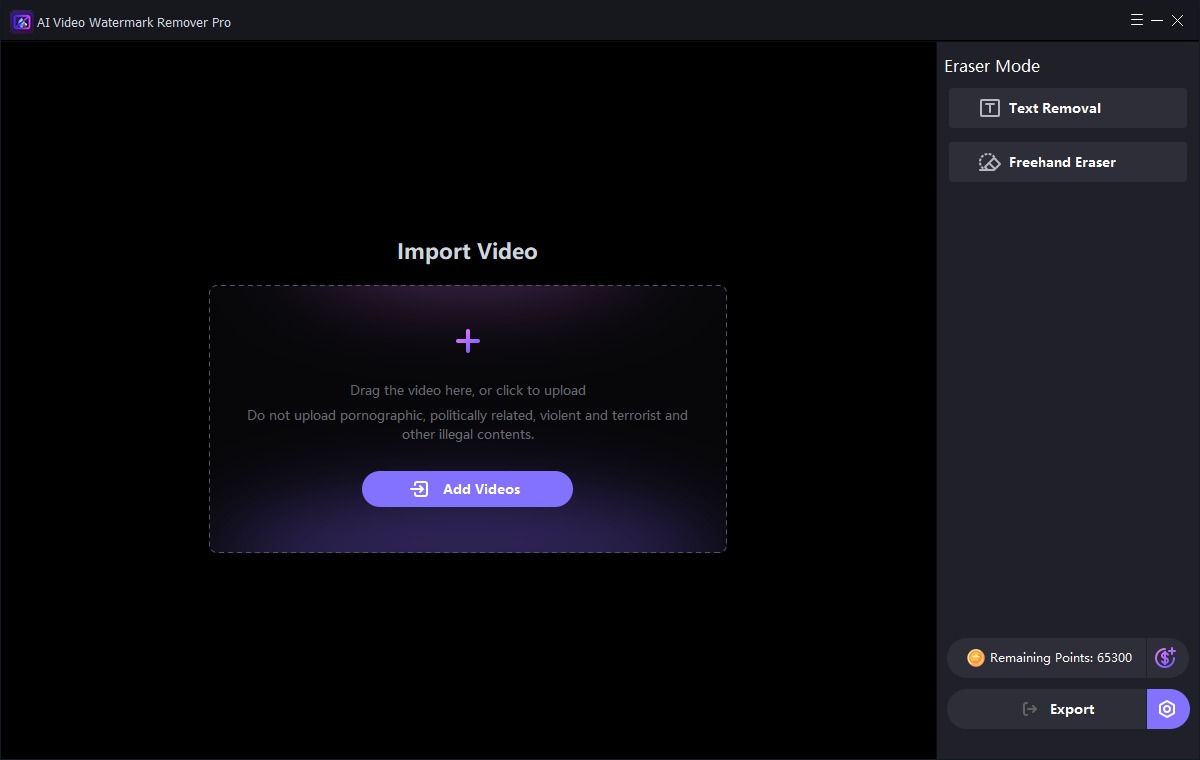
Click the "Add Videos" button to import video file.
Step 2: Edit File
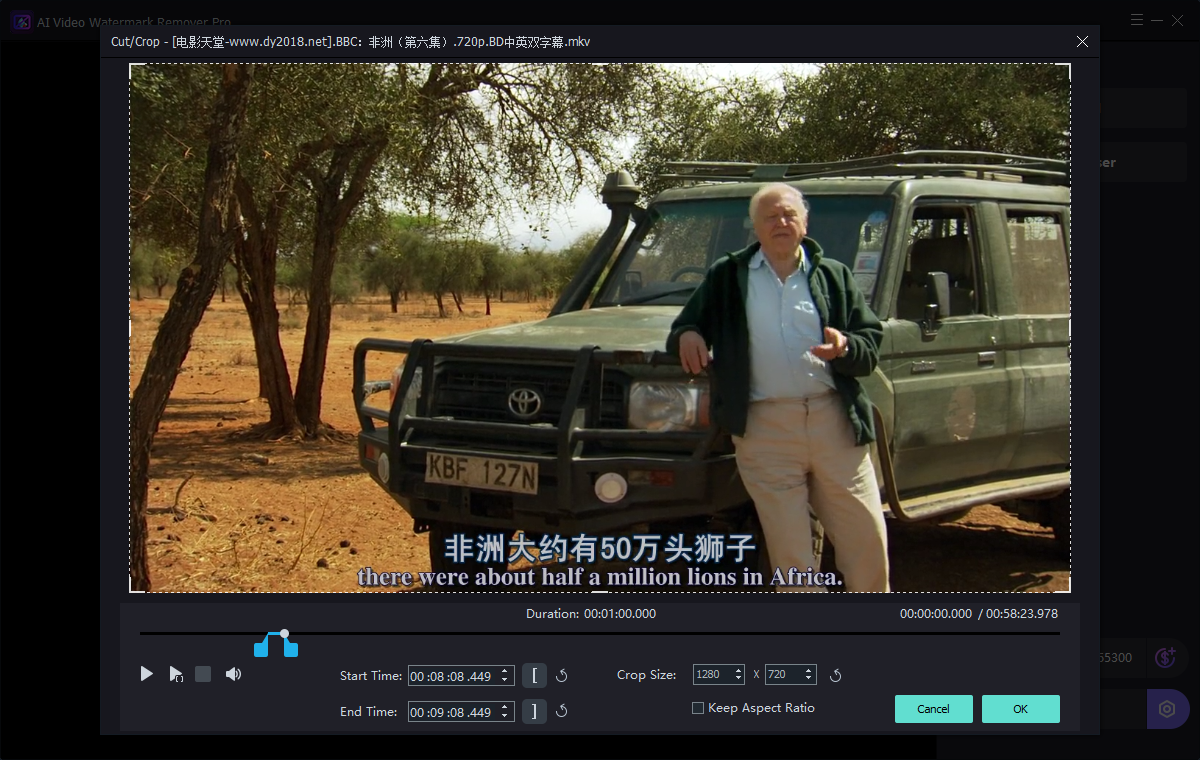
Users can set the video start and end times, as well as adjust video frame parameters. Note: If you are importing a video file, and the video length for which you want to remove the Watermark is less than 1 minute, you can trim (by setting the start and end times of the video) the portion of the video for which you want to remove the watermark. A video under one minute will cost 600 points, and a video under 30 seconds will cost 300 points. This software is best suited for short video creation.
Step 3: Select Erase Mode
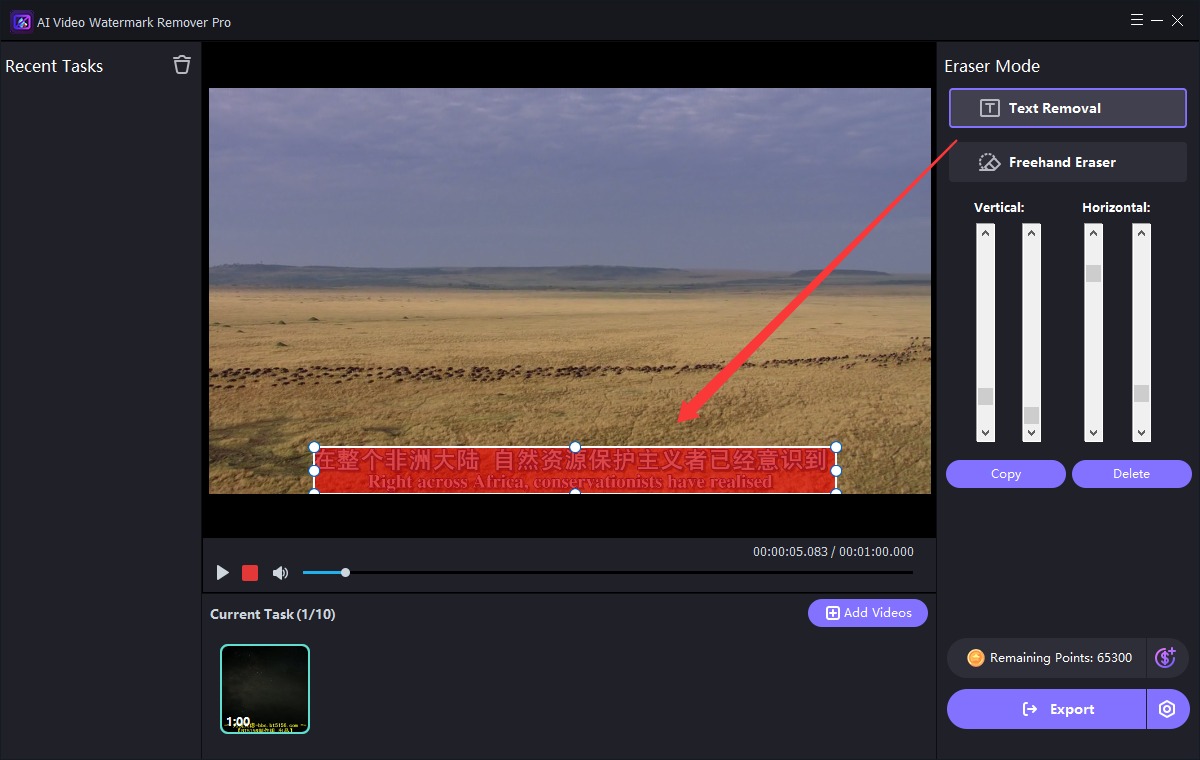
For example, after clicking the Subtitle Removal mode, select the area in the video file where the subtitle appears.
Step 4: Start Removing Watermark
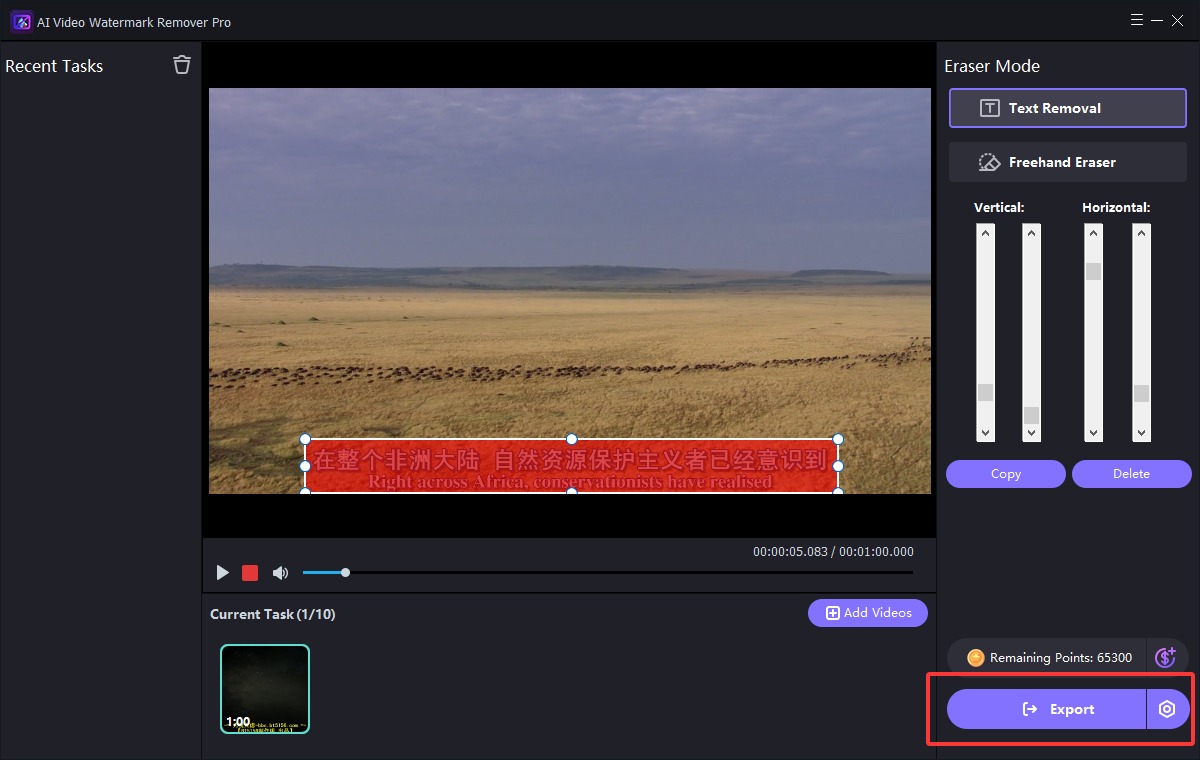
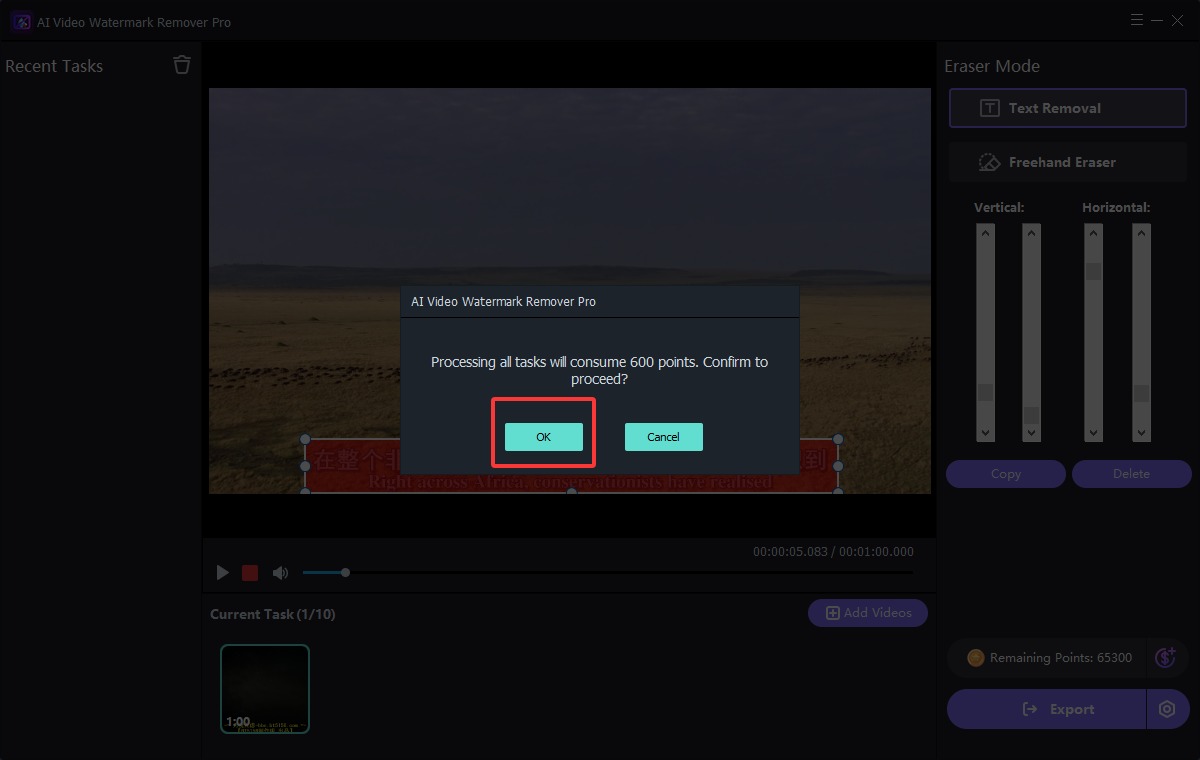
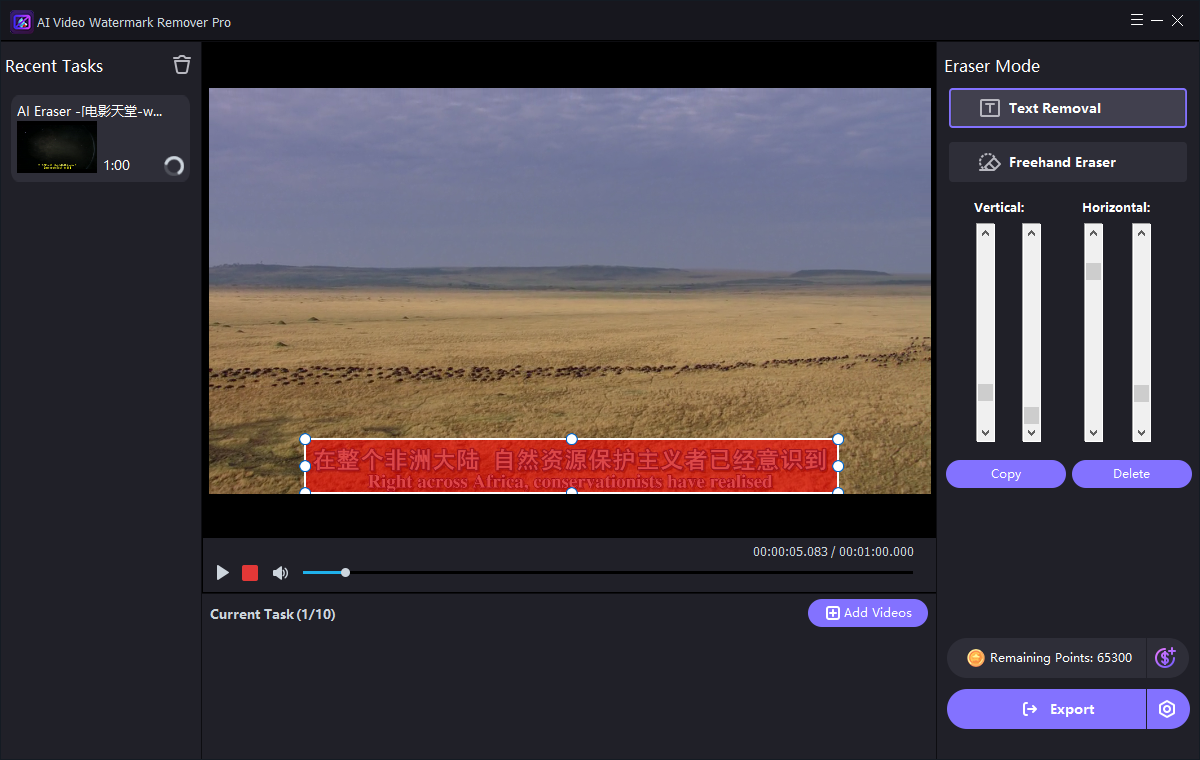
Click the "Export" button to begin removing Watermark from video.